Everything you write lives in documents. They save as you type, keep every version, and sit beside a writing partner who has read them.
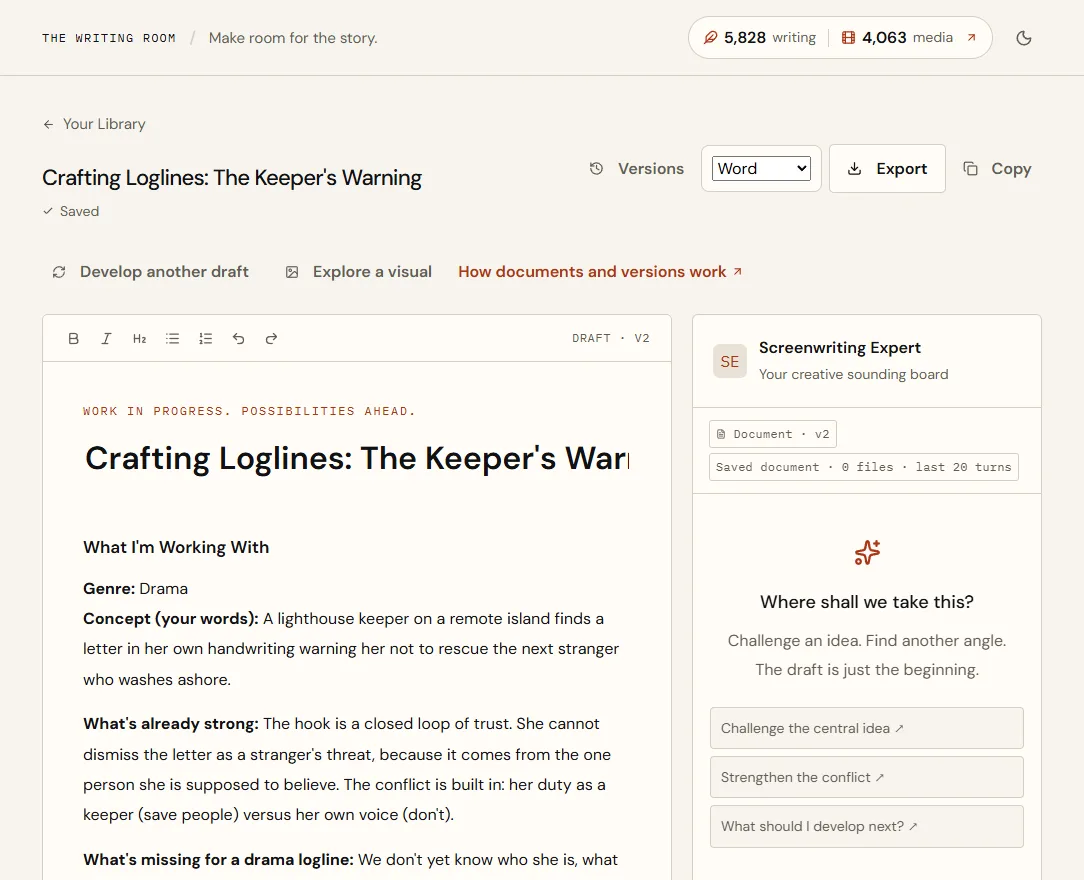
The parts of a document
| Part | What it does |
|---|---|
| Title | Up to 160 characters. Select it to rename. |
| Status | Shows Saved, or Offline — changes pending when you're not connected. |
| Versions | Every saved version, where it came from and when. |
| Format and Export | Download as Word, PDF, Markdown or Plain text. |
| Copy | Copies the saved version to your clipboard as Markdown. |
| Develop another draft | Runs the original tool again for an alternate (documents made with a tool). |
| Explore a visual | Opens the Movie Studio with this document as story context. |
| Toolbar | Bold, Italic, Heading, Bullet list, Numbered list, Undo and Redo. |
| Partner panel | Your writing partner, who reads the latest saved version. |
How saving and versions work
Documents save about a second after you stop typing, and every save is a new numbered version. Nothing you write is ever overwritten, so you can experiment freely.
| Version | Where it came from |
|---|---|
| 1 | Generation: Crafting Loglines for Screenplay Concepts |
| 2 | Your edit: tightened the logline |
| 3 | Accepted suggestion from the Screenwriting Expert |
| 4 | Your edit: new ending |
| 5 | Restored version 2 |
Restoring version 2 didn't delete versions 3 and 4. It added version 5 with version 2's text, so you can still go back to the new ending later.
Go back to an earlier version
- Choose Versions.
- Select the version you wantIt opens read-only, so you can read it without changing anything.
- Choose Restore as a new versionIts text becomes the newest version. The history stays intact.
Develop another draft
For documents made with an AI Writer tool, you can ask the same tool for a different take and compare the two.
- Choose Develop another draft.
- Choose Review generation costYou see the most the alternate can cost.
- Choose Generate alternate · up to N credits.
- Decide what to keepUse this draft makes it the newest version. Save as separate document keeps both. Discard candidate throws it away.
Accept or discard partner suggestions
Ask the partner beside a document for changes and it can propose an edit to one section, shown as Suggested edit · version N. Nothing changes until you choose Accept edit, which saves a new version. Discard removes the suggestion.
- You ask
- Make the opening more ominous: she should hear the call before we know what it is.
- The partner suggests
- A rewrite of section 1, shown as Suggested edit · version 3
- You choose
- Accept edit, and the document becomes version 4
Export
- Choose a format next to Export: Word (the default), PDF, Markdown or Plain text.
- Choose ExportAny pending edits are saved first, then the file downloads.
The Night Station-v4.docx
Files are named after the document and the version they contain.
| Format | Best for |
|---|---|
| Word (.docx) | Sharing with people who edit in Word or Google Docs |
| Reading and printing, with a fixed layout | |
| Markdown | Pasting into other writing apps with headings intact |
| Plain text | Any app at all; formatting is removed |
If something goes wrong
- Another tab saved a newer version. Your unsaved draft is kept. Choose Save a recovery copy to keep it as a separate document, then compare the two.
- The browser closed with unsaved work. Reopen the document in the same browser and choose Recover draft (or Discard local draft).
- This PDF font cannot represent every character. Export Word or Markdown instead to keep the complete text.
Limits
- Up to 40 sections and 120,000 characters per document.
- Titles up to 160 characters; section headings up to 200.
Quick answers
Do I need to save?
No. Documents save automatically about a second after you stop typing.
Does restoring an old version delete the newer ones?
No. Restoring adds a new version with the old text; every version stays in the history.
Can I export in screenplay format?
Document exports use a clean document layout. Write the script itself in Screenplays, which downloads industry-format PDF, Fountain and Final Draft files.