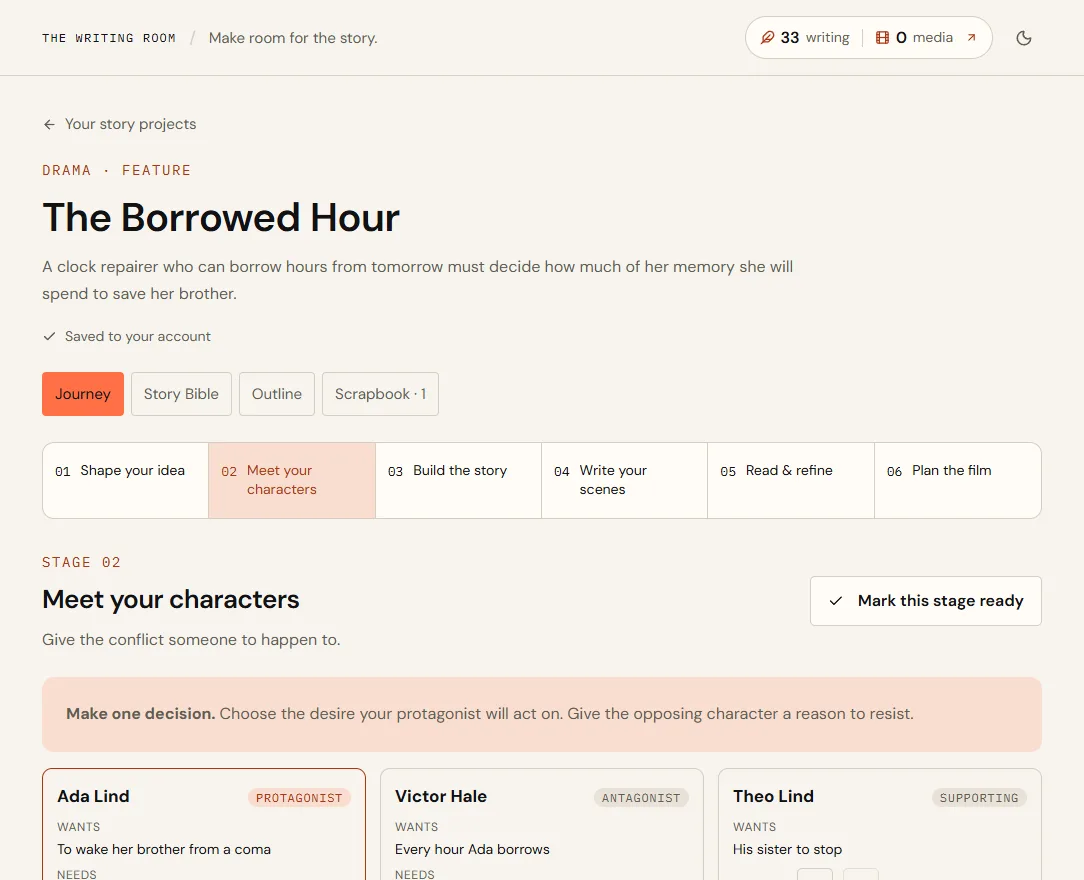
A project follows one story through six stages: Shape Your Idea, Meet Your Characters, Build Your Outline, Write Your Scenes, Check Your Draft and Plan the Film. Take them in any order and come back to any of them.
Everything you decide lives in one place: the Story Bible (title, logline, premise, the world, theme, tone and a card for each character) and the Outline (acts holding beat and scene cards, in order). The Scrapbook keeps words you liked but haven't placed. Every AI Writer tool and Director Avatar opened from the project reads the Story Bible and Outline, and says exactly what it read.
Start a project
- Open Projects in the sidebar.
- Choose where you're startingI have an idea if you know the beginning, or Help me find an idea for a few story sparks to make your own.
- Fill in what you knowA working title, the genre, the format (short film, feature or TV pilot) and your idea. All of it can change later.
- Choose Create my story.
The stages
| Stage | What you do there |
|---|---|
| Shape Your Idea | The top of the Story Bible: working title, logline, premise, the world, theme and tone. |
| Meet Your Characters | A card for each character: role, what they want and need, their wound or flaw, arc, voice and look. |
| Build Your Outline | The Outline: acts holding beat and scene cards, each with what happens, what changes and who's in it. |
| Write Your Scenes | Start the screenplay, or link one you've begun, then start each outline scene in it. |
| Check Your Draft | The Format Check, Outline vs. Screenplay (where your cards and your pages differ), feedback from the AI Writer, and your notes for the next draft. |
| Plan the Film | Where your story becomes a film: images in a storyboard, a clip from each frame, and the Film Editor to cut the clips together. |
The Story Bible and Outline
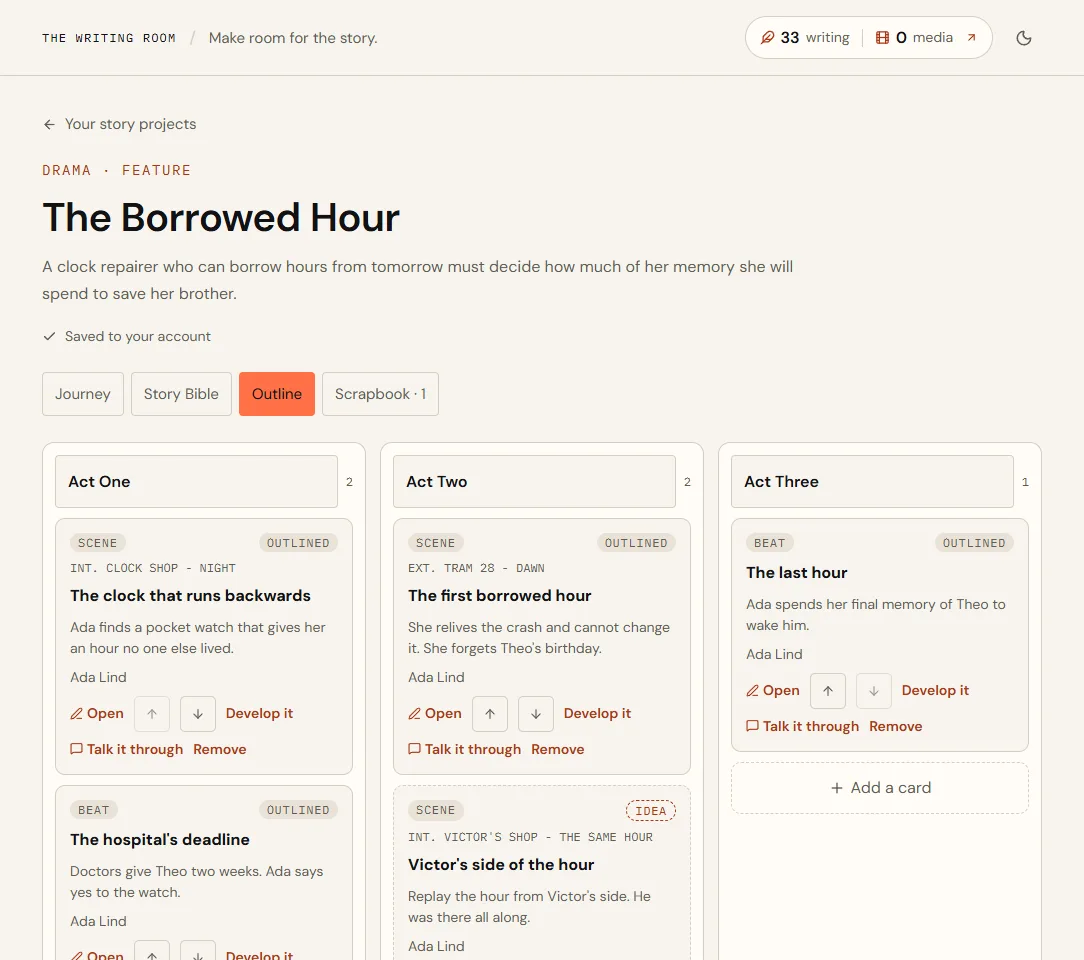
Open Story Bible at the top of a project to see the whole story on one page: the logline and premise, every character card and the outline in order. Choose Outline to arrange the cards: add a card to an act, move it up or down with the arrows (past the first or last card it moves to the next act), and give it a scene heading to make it a scene. Rename, add or remove acts at any time; an act has to be empty before it can go.
Each section of the Story Bible page (Story, Read My Screenplay, Characters, Your Work on This Story and History) has Hide beside its title. A hidden section shows one line about what it holds, such as the logline or how many characters there are; Show opens it again. What you hide stays hidden on this device, for every story (Read My Screenplay, for that story).
Cards show the essentials: a character's name, role and what they want; a scene's number, status, heading, title, what happens and who's in it. Click a card to open it in a window with everything on it, and choose Done or press Esc to close it. The arrows under a card move it; the trash can on the right removes it.
A scene's window also lists what you can do with it, each with a sentence saying what happens: Write it in your screenplay opens the screenplay at that scene, Develop it opens Script Scene Enhancer, and Talk it through starts a conversation with the Screenwriting Expert. The last two use writing credits, and you see the price first.
On a long outline, fold an act with the arrow beside its name to see just its title and how many cards it holds, or choose Fold every act. Folded acts stay folded on this device.
- Scene heading
- INT. CLOCK SHOP - NIGHT
- Title
- The watch that runs backwards
- What happens
- Ada finds a pocket watch that gives her an hour no one else lived.
- What changes
- She can borrow time, and she's going to.
- Who's in it
- Ada
A card marked Idea is still a possibility; tools and avatars treat it that way. A card turns Written on its own once its scene has text in the screenplay.
Add to story and the Scrapbook
Every tool result and every Director Avatar reply has Add to story. Choose the story, then where it goes: a card in the Outline (pick the act and where in it), A character (a new card, or another character's notes), the Story Bible (logline, premise, the world, theme or tone) or the Scrapbook to decide later. To add part of a reply, select the passage first.
The dialog shows exactly what will be added and how long it is against the space where it's going. Nothing is ever cut: a long passage that doesn't fit a card's summary continues in the card's notes, and anything too long for where it's going is refused before it's added, with the limit stated.
The text is copied in and stays editable. A line on the card says where it came from, such as From Christopher Nolan or From Character Canvas, and links back; a field you've added to from several places lists them all. Copying doesn't connect the conversation to your story: tick Also link this conversation if you want its future replies to read the Story Bible and Outline.
The Scrapbook
The Scrapbook tab keeps words you like until you know where they go: a line, a what-if, a scrap of dialogue. Under Create a note, give it a Title if you like, write the note and choose Create. A note's title is in bold at the top of it, where you can add or change it; it saves as you type. A note without a title shows none. The Scrapbook holds 500 notes of up to 8,000 characters each, and it's never sent to the AI. Scrapbook in the sidebar opens it from anywhere in the app: choose the story at the top, or Open the story to go to the whole project.
Above the notes, search their titles and text, and choose Sort: newest first, oldest first, by title A–Z (notes without a title come last) or by where they came from (your own notes first, then each tool or Director Avatar by name). Per page sets how many notes a page shows (20, 50 or 100), with Previous and Next below. The order and the page size are remembered on this device.
Choose Use this note to move it into the Outline, onto a character or into the Story Bible. All of its text arrives before it leaves the Scrapbook. A note's title becomes the new card's title (without one, the card is titled from the note's first line) or the new character's name, if it's 120 characters or fewer; added to a character's notes or the Story Bible, only the text goes.
Tools and avatars read your story
A tool opened from a project shows a box under the brief, Use the Story Bible and Outline, with a line such as Reads your Story Bible and Outline: all 42 cards, all 6 characters, 3 longer details shortened. Every card, every character, the world, theme and tone and everyone’s notes are always included; a feature-length story fits whole. In a very long one the longer details are shortened first, and only then are the details of the cards farthest from the scene you chose left out — the line says exactly what, so choose the scene to keep what’s nearest it. The finished result keeps the line too, such as This draft read your Story Bible and Outline: all 42 cards, all 6 characters, under its title.
Pick a scene under Choose the scene (below the tool's fields), or open a tool from a scene card, and the tool also reads an excerpt of that scene from your screenplay. Dialogue Dynamics and Script Scene Enhancer start with the scene's text in their scene field.
Only tools opened from the project read it: from Tools for this step on the Journey, or from a card. A tool opened from AI Writer in the sidebar doesn't, even straight after you've been in a project. Clear the tick to leave the story out of one run. A Director Avatar started from a project reads the story with every reply; clear the tick in the conversation to leave it out from the next reply on, and tick it again whenever you like.
Write from the outline
On Write Your Scenes, every scene card from your outline is listed in order with its status: Not started means its scene heading isn't in your screenplay yet, Started means the heading is there with nothing under it, and Written means it has action or dialogue. Scenes in your screenplay that have no card yet come after them, marked Not in your outline; choose Add it to the outline to give one a card, in script order. It's free, and you can undo it from History. The counts at the top filter the list, and the line above them says how many scenes your screenplay has and how many scene cards your outline has.
Choose a scene, or its Open button, to see its card in a window without leaving your project. From the window, Write it in your screenplay opens your screenplay at that scene. If the scene's heading isn't in your screenplay yet, it's added after the scenes that come before it in the outline. If the screenplay has changed since you opened the outline, or it has unsaved typing in this browser, the editor opens and adds the scene itself, so nothing is overwritten.
The screenplay saves by itself a moment after each change, and Save at the top saves straight away; beside it, All changes saved shows when it last saved. Back to your story's name takes you back to Write Your Scenes.
Beside the page, the Story panel shows this scene's card, the characters in it with what they want and need, and the outline scenes still to write, each with Add to the script here.
Check Your Draft
Once you've written scenes, Check Your Draft (Stage 05) is the one place to check them. The four boxes at the top say how each part stands and take you to it.
Format Check looks at layout, not story: that there are scene headings and action, that every line of dialogue has the name of the character speaking it above it, and that no scene heading still says LOCATION or UNTITLED. Each finding lists the scenes it was found in; choose one to open your screenplay right there.
Outline vs. Screenplay compares your Outline and character cards with your screenplay and lists where they differ: a scene heading that's different in the script, a card whose scene has been cut, linked scenes in a different order, outline scenes not written yet, script scenes with no card, speaking parts with no character card, characters who never appear, and earlier notes alongside your cards. None of these are errors. Each has its choices, such as Use the screenplay's heading or Keep the card's heading; for speaking parts, tick the ones that need a card. Choose Hide this, it's on purpose for anything you mean to leave, such as minor parts without cards; it stays hidden unless it changes, and Show them again brings everything back. Nothing changes until you choose, and the checks are free.
Get Feedback has the AI Writer tools and Director Avatar for this stage, and Notes for Your Next Draft is yours alone: the AI doesn't read it.
Your work, History and Recently Removed
Your Work on This Story, on the Story Bible page, lists everything made for the story with an AI Writer tool or a Director Avatar, newest first, each with what made it and when. Choose Open to read it.
History, at the foot of the Story Bible page, lists what happened to the story in the last 30 days: cards and characters removed, Scrapbook items moved, what you added from tools and avatars, and the choices you made in Outline vs. Screenplay. Choose Undo on any of them. If something has been edited since, Undo shows it and asks whether to keep the current text or restore the earlier text; it never writes over your later work on its own.
Removed cards, characters and Scrapbook items stay in Recently Removed for 30 days; choose Restore to bring one back. Undo in the message after removing does the same.
Removing a character also takes them out of Who's in it on every card. Restoring the character, or undoing the removal, puts them back in those scenes.
Each stage suggests AI Writer tools and a Director Avatar. They read your Story Bible and Outline; what a tool writes is saved to your Library like any other result, and Add to story brings any of it into the project.
Choose Mark this stage ready when a stage feels done. It's only a marker for you; you can still change anything.
Saving
Every field saves on its own a moment after you stop typing. If you're offline, it says so and saves when you're back. If a save fails, the field says Not saved · Retry and keeps your text, with a copy in this browser in case the tab closes.
If the same field was changed in another tab, the field shows both versions: Keep yours or Use theirs. Different fields and different cards never get in each other's way.
Fields show their limit as you get close to it. Text over a limit is never cut; the field asks you to shorten it, and saves when it fits.
Notes you wrote before the Story Bible and Outline arrived are kept under Character notes and Outline notes, and still save as you type. Outline vs. Screenplay, on Check Your Draft, can turn them into cards when you're ready.
Delete and restore
Choose Move to Trash on a project. Restore it from the Trash tab within 30 days; after that it's deleted for good, with everything in its Story Bible, Outline and Scrapbook. Its linked screenplay and storyboard, and the results and conversations made for it, aren't affected.
Quick answers
Do projects use credits?
Projects, notes, the Story Bible, Outline, Scrapbook and the checks on Check Your Draft are free. Only the AI tools, avatars and media you choose to run use credits.
A tool or avatar opened from a project also reads your Story Bible and Outline. That usually adds nothing to the charge; for a long story we estimate about one credit more. The price you see before you run a tool is the most it can cost.